

Import failed. The NinjaScript archive file may contain duplicate method names. Please check the log tab for more information.
No indicator is right for everyone — it depends on what you trade and what you already know how to read. But the ones worth keeping share a short list of properties, and the ones you uninstall tend to fail in the same four places. Here’s the checklist, category by category.

By SWEEPLOGIC
- August 1, 2026
- 15 Min Read
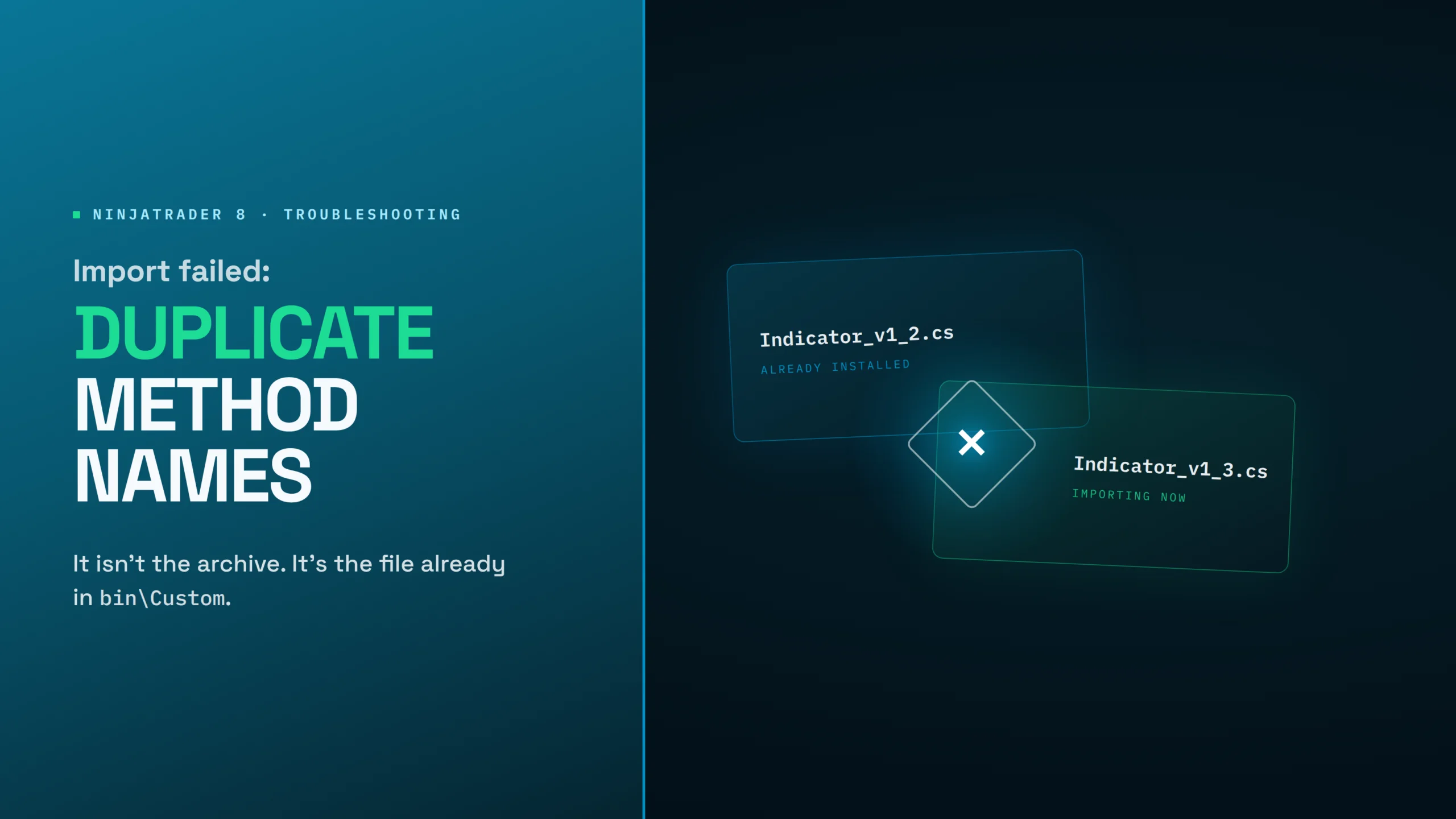
If NinjaTrader 8 refuses to import an indicator and mentions duplicate method names, nothing is wrong with the file you just downloaded.
The error is almost always about what is already in your installation. Something defining the same thing is sitting in bin\Custom from a previous install, and the compiler won’t build an assembly that declares the same member twice.
This is the full explanation, the diagnosis, and the fix order. It applies to any NinjaScript archive from any vendor, not just ours.
The error you’re seeing
The dialog reads roughly like this, with the exact wording varying by build:
Import failed. The NinjaScript archive file may contain duplicate method names. Please check the log tab for more information.
Two things to note immediately.
- It is a compile error wearing an import error’s clothes. The import didn’t fail because the ZIP was malformed. It failed because NinjaTrader tried to compile the result and couldn’t.
- The dialog is truncated. The message you see almost never names the actual conflicting file. That information exists — it’s just somewhere else, which is section 04.
Why NinjaTrader raises it
NinjaTrader compiles everything under Documents\NinjaTrader 8\bin\Custom into a single assembly, NinjaTrader.Custom.dll. Your indicators, your strategies, every vendor’s tools, all of it — one compilation unit.
On top of that, NinjaScript auto-generates a wrapper method for every indicator, which is what lets you call MyIndicator(14, true) from a strategy or another indicator. Those wrappers all live on the same partial class.
So when two files in that tree declare the same indicator class, the generator emits two wrapper methods with the same name — and the compiler stops. Hence the wording. The error is describing a symptom of duplicate types, which is why hunting for a literal duplicate method in your own code turns up nothing.
The same collision happens with any shared type, not just indicator classes. Two files declaring an enum ColorTheme in the same namespace is exactly as fatal as two files declaring the same indicator.
The archive isn’t the problem. The folder is.
An import failure of this kind is a statement about the files already resident in your installation. Re-downloading the archive, importing it a second time, or trying a different browser will produce the identical error every time.
The four ways you get here
Nearly every case traces to one of these.
- Versioned filenames accumulating. A vendor ships
Indicator_v1_2.cs, then laterIndicator_v1_3.cs. Because the filename changed, the second import doesn’t overwrite the first — it lands beside it. Now two files declare the same class. This is the single most common cause, and it is a packaging mistake on the vendor’s side, not a user error. - A renamed indicator leaving its predecessor behind. If a tool was renamed between versions, the old file stays in place. Even when the class names now differ, any shared enums usually didn’t change — generic names like
ColorTheme,MAType,TableAnchor, orBiasDirectionsitting in the same namespace collide on their own. - Bundled files inside another product’s export. Some vendor archives ship supporting indicator files inside them. If you own two products from the same vendor and both archives contain a copy of the same shared file, the second import collides with the first.
- Property signature drift between versions. Every
[NinjaScriptProperty]on an indicator becomes a parameter on that auto-generated wrapper method. Add or remove one between versions and the method signature changes — which is itself an import-blocking conflict for anyone with an older copy still resident.
Notice that all four have the same shape: two generations of the same code coexisting. That’s the thing to remove.
Every version of this error is the same sentence: there are two copies of one thing, and only one can exist.
Finding the file that’s actually conflicting
Don’t guess from the dialog. There are three places with the real information.
- Control Center → Log tab. Check it immediately after the failed import. The untruncated compiler output names the conflicting type and, usually, the file path.
- The trace folder.
Documents\NinjaTrader 8\trace\holds the full log files. Sort by modified date, open the newest, and search for the indicator’s name. - The NinjaScript Explorer. Control Center → New → NinjaScript Editor, then browse the Indicators folder. Two entries with similar names, or the same tool appearing at two version numbers, is your answer without needing any log at all.
One diagnostic worth knowing if you write your own scripts: on a local compile, error line numbers that exceed the number of lines in the source file mean a stale duplicate-class file is colliding — the compiler is reporting against a concatenated unit, not against your file. That specific tell saves a lot of time staring at code that’s fine.
The fix, in order
Order matters here. Doing these out of sequence is why people repeat the process three times.
- Close every chart using the tool. Not strictly required, but it avoids a second class of confusing errors during the recompile.
- Remove the old files. Control Center → New → NinjaScript Editor, locate the previous version in the Indicators folder, and remove it. If you can’t find it there, delete the
.csfile directly fromDocuments\NinjaTrader 8\bin\Custom\Indicators. - Restart NinjaTrader. This is the step people skip and it is not optional. NinjaTrader keeps compiled assemblies resident in memory; removing a file without restarting can leave the old generation loaded and the collision intact.
- Import the new archive. Control Center → Tools → Import → NinjaScript Add-On, then select the ZIP. Do not unzip it first.
- Recompile and verify. Open the NinjaScript Editor and press F5. A clean compile means you’re done. Then add the indicator to a chart and confirm the version number matches what you expected — the header comment or the UI Name usually carries it.
If step 5 still fails, go back to the Log tab. A second conflicting file is a normal outcome when an installation has accumulated several versions.
The variant that looks identical and isn’t
If your Documents folder is backed up by OneDrive, you have a second failure mode that presents almost the same way.
OneDrive’s Files On-Demand feature leaves placeholder stubs on disk instead of real files. NinjaTrader cannot read or overwrite a placeholder, so the import fails — sometimes with a duplicate-type message, sometimes with 0x8007016A The cloud file provider is not running. That error code is the tell.
The fix is different from everything above:
- 1Restart OneDrive so the provider is actually running.
- 2Set the NinjaTrader 8 folder to “Always keep on this device” and wait for it to hydrate fully. Placeholders have to become real files before anything else will work.
- 3Move the folder out of OneDrive. Stop the Documents backup and relocate
NinjaTrader 8to a local path. This is the durable fix — as long as the tree is synced, the problem can recur after any storage-cleanup pass.
If you package NinjaScript for other people
Most of these failures never reach the user if the packaging follows a few rules. Worth stating plainly, because the customer experiencing the error usually can’t fix the underlying cause:
- Keep the filename stable across releases. Put the version in the header comment and the UI Name, not in the filename. A stable filename means the next import overwrites cleanly instead of accumulating.
- Never put dots in a version inside a filename. NinjaScript Explorer splits filenames on periods and renders a phantom folder tree.
SweepLogic_HTFProfile_v1_8_0.csis correct;v1.8.0is not. - Prefix every shared type. Generic names like
ColorTheme,MAType,TableAnchor, orOrderBlockwill collide with somebody. A product or vendor prefix on every enum and helper type removes an entire category of support tickets. - Decouple across products sold separately. If two products can be bought independently, neither archive should contain the other’s files. Keep together only what ships as one unit.
- Export on the oldest build you support. An archive exported from a newer NinjaTrader build will not import into an older one.
- Ship the uninstall step in your install doc. Tell people to remove the prior version and restart before importing. It costs one line and prevents the most common failure outright.
The short version
If you take one thing from this: the error is about your installation, not the download. Remove the old file, restart NinjaTrader, then import. If it persists, the Log tab names the file — the dialog never will.
Where SweepLogic fits
We publish this because we hit it ourselves. Our indicators now ship with stable filenames, prefixed shared types, and an uninstall-first install step for exactly the reasons above. If you’re a SweepLogic customer and an import is failing, our support inbox will walk it through with you — send the contents of the Log tab and Trace log along with your message and it’s usually a one-reply fix. Support details are at tradethesweep.com/support.
Educational and technical content only. Nothing here is financial advice or a recommendation to trade. Procedures described involve modifying files in your NinjaTrader installation — back up your Documents\NinjaTrader 8 folder before removing anything. SweepLogic is not affiliated with NinjaTrader; NinjaTrader and NinjaScript are trademarks of their respective owner. Futures trading involves substantial risk of loss and is not suitable for every investor.
- FROM THE SUITE